Not doing a full shutdown of your computer: how bad is it?

With laptops, it is easy to develop the habit of simply closing the lid when we are done. However, if you do carry your laptop around, you probably have learned that closing the lid is not enough, nor is putting it into sleep. You really don't want it waking up mid-travel.
With desktop PCs, there isn't a comparable physical action. The closest thing would be just turning off the monitor or locking your computer.
Whether you do this a few times or have developed this consistent bad habit, it is okay. We get it. This usually happens because we are preoccupied by other things, or the standard way of doing things is not good enough.
So, how bad is it?
Well, it is not that worst, but it can add up.
Locking vs. Sleep vs. Hibernate vs. Shutdown
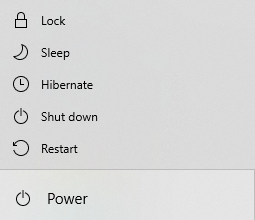
Let's take a quick look at the options you got and how the computer handles power in each state.
1. Locking
Primarily used for screen security, there is no power saving when you lock your computer. The computer just cuts power only to the display and requires a password to access the desktop.
So, while you might be away for lunch or on a quick errand, all your applications and processes continue to run at full power.
On a sudden power cut (Desktop) or battery drained to 0% (Laptop), your computer will result in a hard crash and data loss. Because the computer is running normally, the power cut is equivalent to pulling the plug. Even if you are using a laptop, when the battery is drained, the laptop treats the depletion like a sudden power cut.
Any unsaved data in programs or files is instantly lost. The operating system (OS) is not shut down properly, risking file system corruption.
- You are only stepping away for a few minutes (e.g., getting a coffee or quick restroom break).
- Your priority is instant security, and you are not concerned about power consumption.
- You are in a shared space (office, library) and want to prevent immediate unauthorized access.
2. Sleep Mode
When you put your computer to sleep, it enters a low-power state in which power is cut to non-essential components such as screen, or hard drive but keeps the RAM (your computer's superfast short-term memory) powered on. This preserves your open documents and apps.
Basically, taking a power nap. The second you make contact, it will wake up right away.
However, in this mode, you are still using power. And, if it is a laptop, you want to avoid wasting unnecessary battery power. Carrying a laptop that is on sleep mode has a chance that it powers on as you walk or climb up the stairs.
We talked above about how Sleep Mode uses RAM primarily. Constantly having your device on Sleep Mode without any full shutdowns will impact the health of RAM. This is because as applications access and use RAM, there is a possibility of memory leaks or background process running. To have your RAM work the best of its abilities, it needs a clean state, which is only achieved through a full shutdown or restart.
For Desktops, if the power cord is cut, the RAM (which is powered in Sleep Mode) immediately loses power, and all unsaved data is instantly wiped. Unless you are using an Uninterruptible Power Supply (UPS), there is no saving the session.
Now, for laptops, you have a chance.
Your computer (OS) will intervene. As the battery level drops critically low (usually around 5–10%), the operating system will force the computer to move from the Sleep state to the Hibernate state before the last bit of battery power is exhausted. If successful, your data and session would be saved and returned to you when you power back on.
But... if the battery is defective or the drain happens extremely fast (a rare scenario), the computer may not have enough time to complete the forced hibernation, resulting in a crash.
- You are stepping away for lunch or a meeting.
- You are moving between rooms.
- You will be back within a few hours.
3. Hibernate
Hibernate is the middle ground and the least known option (sometimes disabled in certain computer configurations). It is like doing a deep freeze on all your work. When you heat it up, it will still be as fresh as it was.
It was designed to save battery without losing your work. The computer takes everything currently in your RAM, writes it to the hard drive (SSD), and then turns the power off completely. This is the best option you should choose to resume all your things on your computer. As it reads data back from the drive, it will be at a slower wake-up speed than Lock or Sleep but very negligible.
Best of both worlds and makes your computer happy.
All data from your active session (RAM) was already written to the permanent hard drive before power is cut. A power loss has no effect on the saved session.
- You are done for the day but want to resume exactly where you left off tomorrow.
- You are traveling, and the laptop will be in a bag (critical for preventing overheating).
- You want to save battery but don't want to close your apps.
4. Full Shutdown (The "Fresh Start")
All programs are closed, and all power is cut. The RAM is completely cleared.
All programs are closed, and all data is written to the hard drive before power is cut. There is no active session data to lose.
- At least once a week. This is non-negotiable. You need to clear the RAM and apply software updates.
- The computer is acting buggy or slow. Some programs would even require a full restart for proper functioning.
Our take: Why we encourage a full shutdown

Besides all the technical benefits, the act of fully shutting down your computer can serve as an anchor for your routine and habits.
It is all about creating a balanced ritual. If you make the habit of doing a full shutdown at the end of the work day or week, it will signal your brain that the job is done and this current portion of time is for other things.
If you are someone who tend to overwork or are chronically stressed about work, instituting this is crucial for your wellbeing. It will help you free up time and mental space for social activities and hobbies.
Including work-life balance, doing a full shutdown also helps your brain have a mini-reset. So, that the next day, you can jump back into your work with renewed energy. Similar to clearing your desk at the end of the day, clearing your digital workspace brings clarity. While it may sound trivial, it is highly effective.
When you resume work in a cluttered digital workspace, your brain more vividly recalls your previous experience. This would include the potential attempts at solutions, the various information you consulted, and any associated emotions. Recalling prior work isn't inherently bad. However, if you are stuck or frustrated, a cleared workspace helps reframe your mind and perspective before you tackle the task. A very small change that makes all the difference.
With Pulse Desktop, we bring a solution to make this habit easy to implement. It is annoying to bring back your workspace when doing full shutdowns. And, that is the main reason why, people often opt to keep their computer on Sleep Mode or Hibernate. This does allow you to jump back in to what you were doing, but you don't attempt any new ventures due to this because you want to preserve your workspace.
Using Pulse Desktop, you will be able to save all your workspaces and can access each one of them whenever you need. Want to go back to working on your novel? Create a writing workspace and launch it when you need. Find out more here.

Comments ()